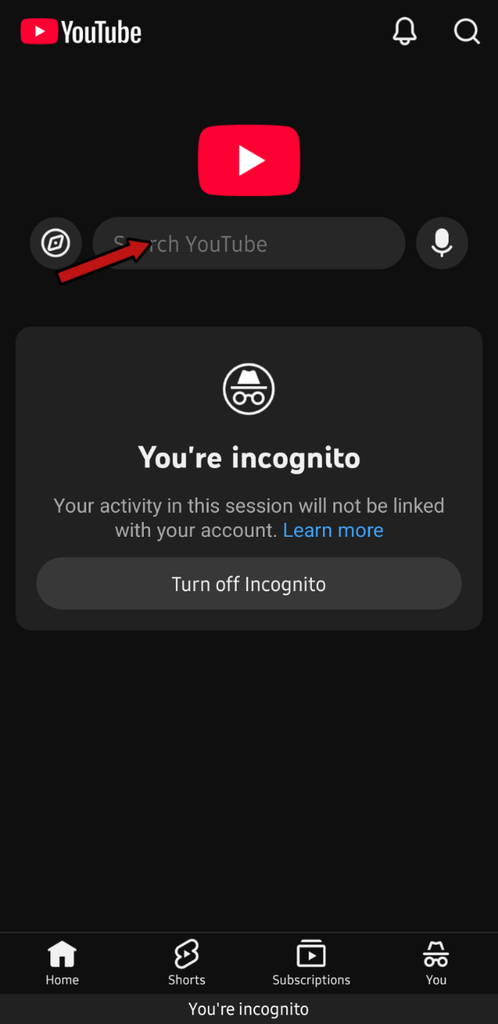
Even with fast, modern internet today, people still face various issues. Today, we will look into the solution for Why My YouTube is Not Working on My Phone. We will guide you through a step-by-step fix for your YouTube loading issue. By using these simple methods, you can easily get YouTube running on your mobile phone again.
Sometimes, as soon as you open YouTube, you get a “something went wrong” error, an update prompt, or a continuous loading screen. Here are 10 methods you can follow to fix and run your YouTube app.
Unstable or Weak Internet Connection
Most of the time, the issue gets fixed right here. Many people have a very slow internet connection, or sometimes their data package has simply expired. First, check your mobile data. If you are using Wi-Fi, disconnect and reconnect it.
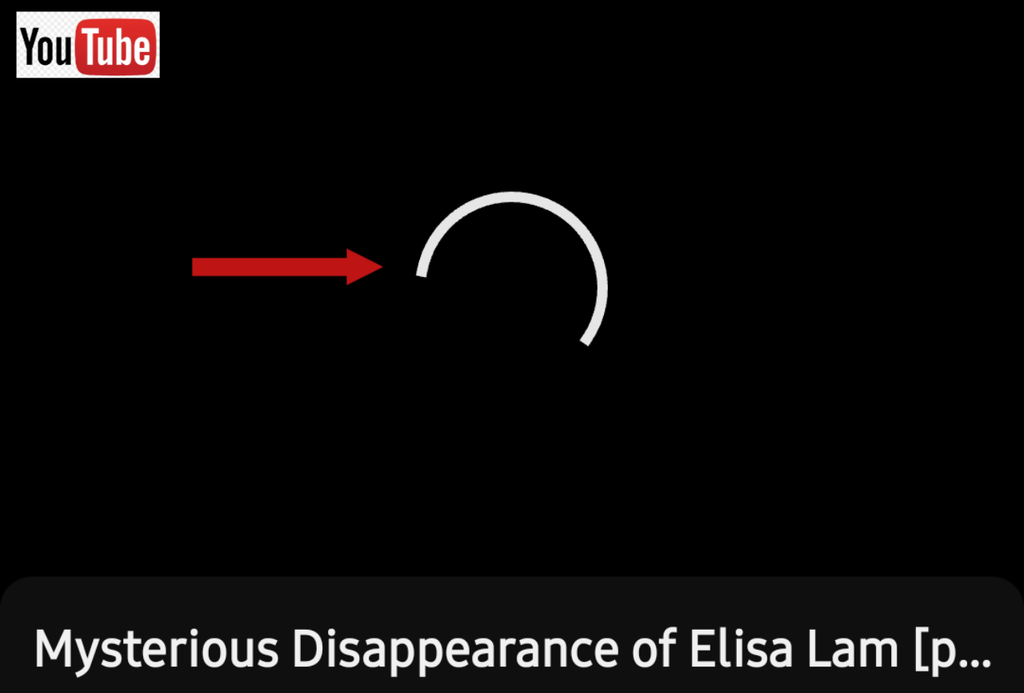
Check If YouTube Server Is Down
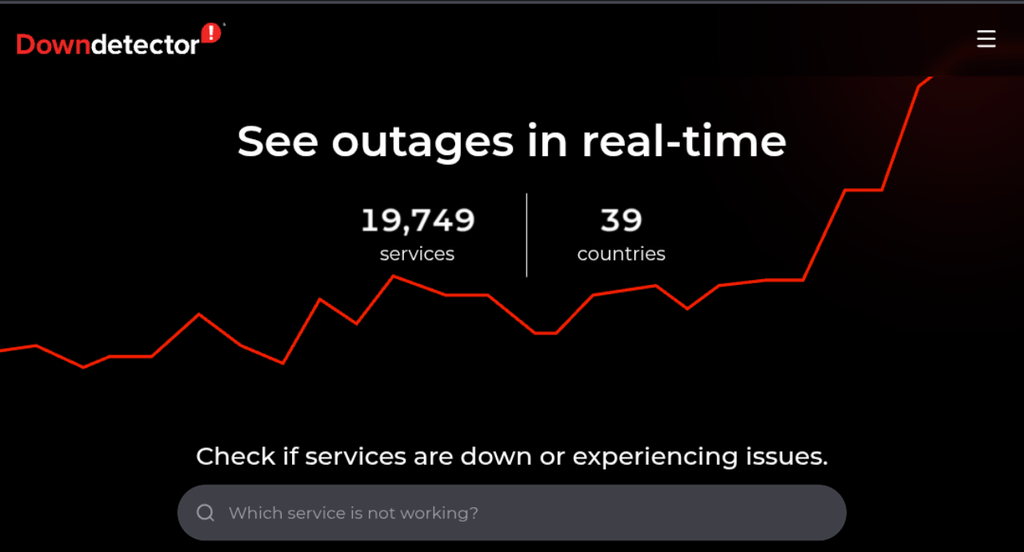
Before trying the next steps, make sure to check if the YouTube servers are actually running. To check this:
- Go to your mobile browser
- Visit the DownDetector website
- Type “YouTube” in the search bar
- Click the search button
Now you will see YouTube service status data showing whether the servers are down or working properly.
Restart Phone
The next method is to turn your smartphone off and then back on. Using many apps on a phone can cause temporary system glitches, which make apps crash or show errors as soon as they open.
Update App if YouTube Is Not Working On Your Phone
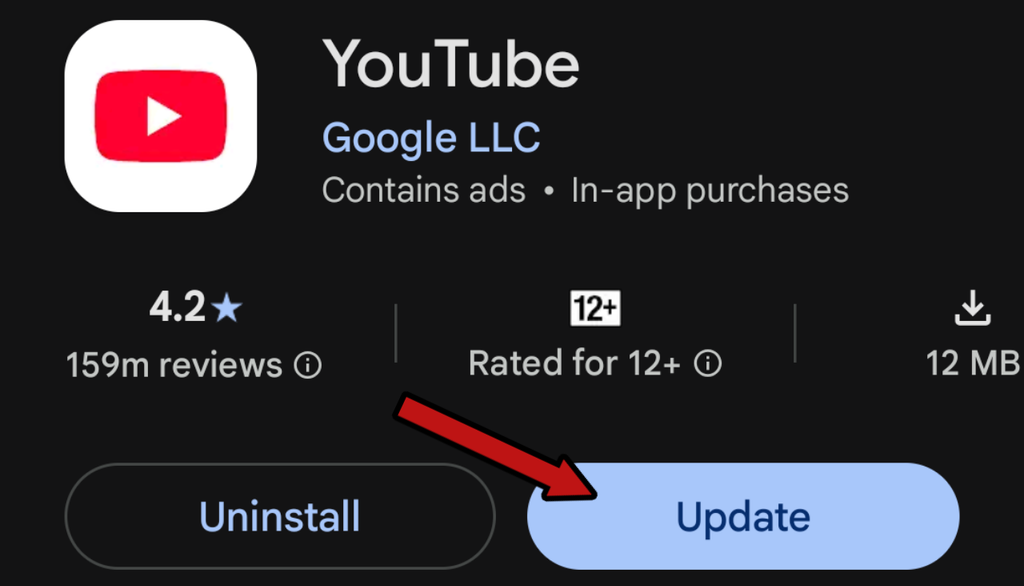
If restarting your phone does not fix the why my YouTube is not working on my phone issue, open the Play Store on your device.
Search for the YouTube app and update it. Running an outdated app version often causes these errors, so make sure your YouTube app is fully updated.
If you are an iPhone user, open the Apple App Store and update the YouTube app from there.
Clear YouTube Cache and Data
When temporary bugs build up inside an app, YouTube or any other app stops working properly. To fix this, clear the cache and data of your YouTube app.
To clear this data, go to the YouTube app info settings and clear its storage.
Fix Date and Time Settings
With modern technology, system security is strictly synced. If your phone’s date and time do not match your current region, error screens will show up.
Check your mobile phone’s date and time. If they are incorrect, fix them before opening the YouTube app again.
Turn Off VPN and Proxy Services
If you are using a VPN or proxy on your phone for another app and then open YouTube, the app may fail to load because of the active VPN or proxy.
The server location selected in your VPN might not support or allow YouTube access. To run YouTube properly, disconnect your VPN or proxy.
Even if YouTube opens while a VPN is connected, it might run extremely slowly and cause errors, so turn off your VPN and try again.
Reinstall the YouTube App
Uninstall the old YouTube app from your device, then download and install a fresh copy from the Play Store or Apple App Store.
Reinstalling gives the app a fresh start and will likely resolve your YouTube playback issues.
Outdated Device Operating System
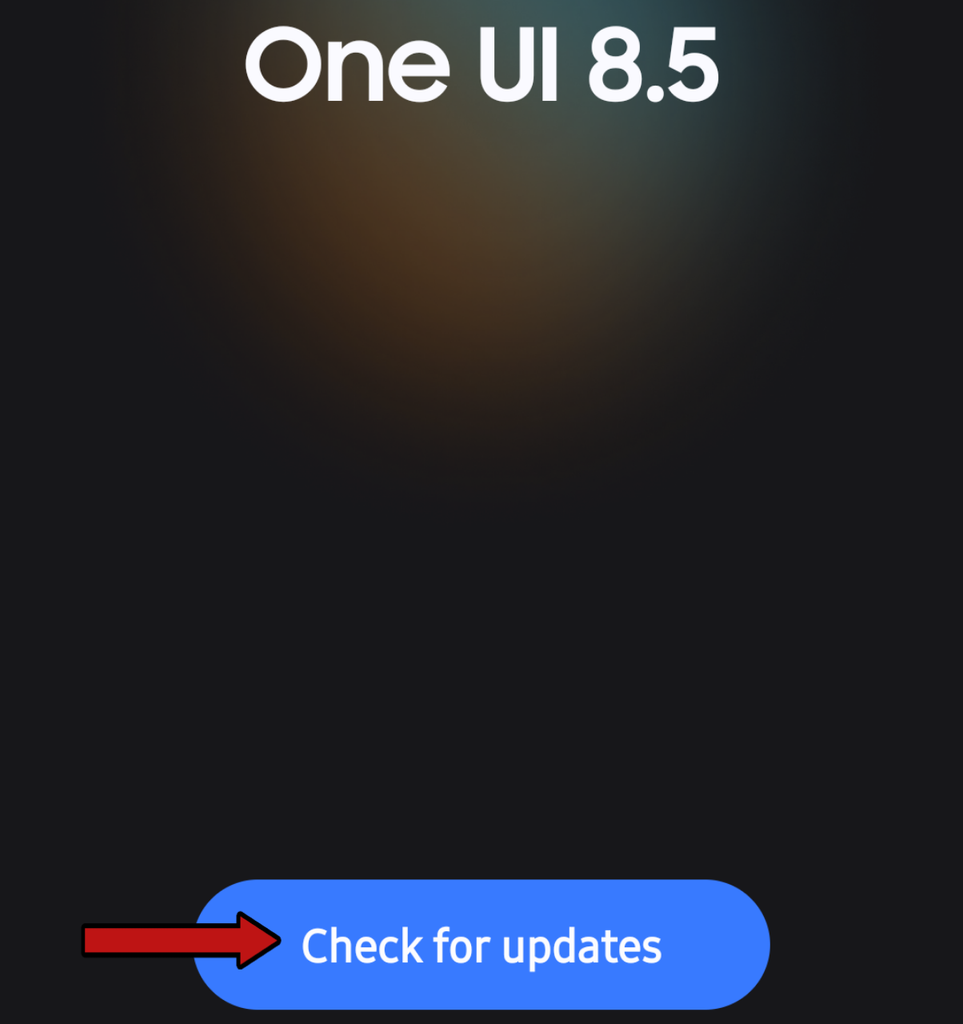
Phone manufacturers regularly push out new software updates. Sometimes you receive a notification for them, but if notifications are turned off, you might miss them.
If a software update is available for your phone, update your system and then launch the YouTube app.
Account and Google Sign-in Errors
After checking everything else, take a look at your Google account attached to YouTube, as it might have a sign-in error.
Open an “Incognito tab mode” inside YouTube and try playing videos there. If videos play fine in Incognito mode, the problem lies within your main account.
Sign out and sign back into YouTube. This should fix your why my YouTube is not working on my Phone issue.