
Changing your smartphone’s PIN or password is super easy. Whether you just bought a new phone or want to set a password on your current device, and regardless of whether you use Android or iPhone, today we will show you the complete step-by-step process on how do you change password on phone.
How Do You Change Password on Phone Step-by-Step
Mobile phones come from various brands like Samsung, Xiaomi, or Oppo. However, the process to change your password is almost identical across all of them.
Follow these simple steps to update your phone’s password:
How to Change Password On Android
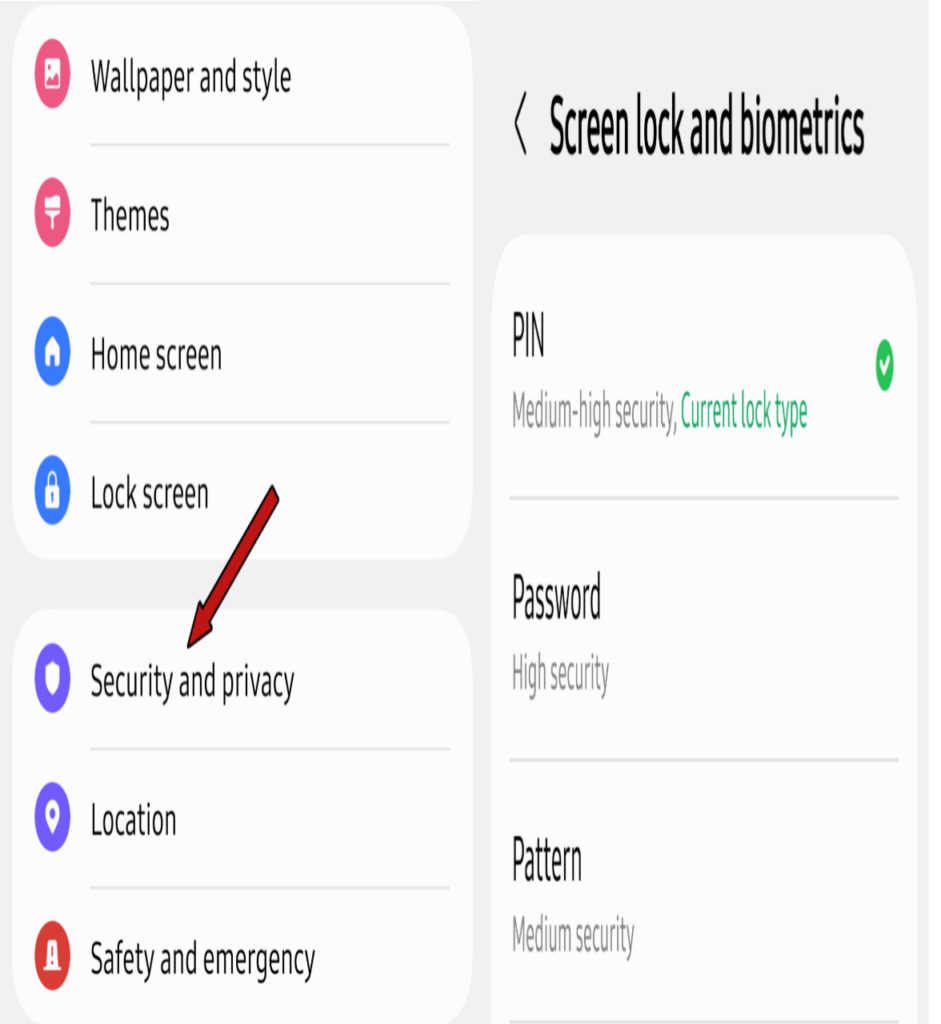
- Open your mobile phone’s Settings.
- Scroll down the menu.
- Look for the Security & Privacy option.
- On some phones, you may need to go into the Lock Screen option to change your password.
- Enter your current password here and tap Next.
- You will see three main options:
- PIN: 4 or 6-digit numeric code.
- Password: strong mix of numbers and letters.
- Pattern: custom pattern drawn across a grid of dots.
- Select your preferred lock type and set your password. The system will ask you to confirm it, so type the exact same password again.
- Tap the OK or Save button. Your Android mobile password is now set.
How to Change Passcode on iPhone (iOS)
Setting or changing a passcode on an iPhone is extremely straightforward. You can easily do it by following a few options in your settings:
- Open your iPhone’s Settings.
- Scroll down and select Face ID & Passcode (or Touch ID & Passcode if your phone has a physical home button).
- Tap Change Passcode, enter your old password, and tap Next.
- Now enter your new 4-digit or 6-digit passcode. This will successfully update the passcode on your iPhone.
Important Tips For Android And iPhone Users
Simply setting a password is not enough. You should create a password that is impossible for anyone else to guess.
Never use obvious patterns like 0000 or 12345, and avoid using your date of birth. Instead, choose a random, strong password so no one can crack it.
What to Do If You Forget Your Phone Password
If you try to change your phone’s password and it asks for your old password—which you no longer remember—there is no need to panic.
- Android: If you forget your password on an Android phone, you will need to perform a Factory Reset from the recovery menu. This will completely wipe and refresh your device.
- iPhone: If you forget your iPhone’s passcode, you must connect the device to a computer using iTunes or Finder and Restore it through Recovery Mode.
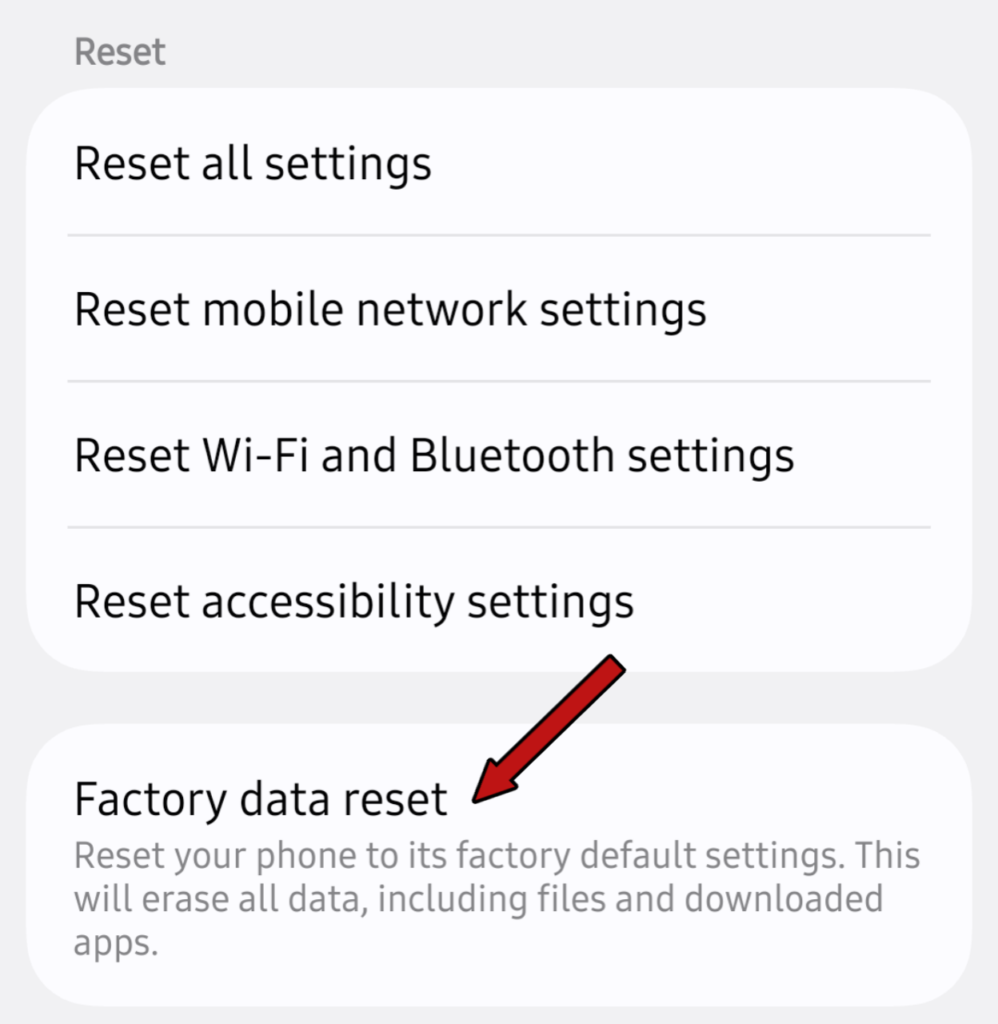
Please keep in mind that performing a factory reset on your mobile phone deletes all stored data, including photos, videos, documents, and downloaded applications.
Therefore, always back up all your essential data to another device or a USB drive before resetting your phone.
We hope this completely solves your question on how do you change password on phone. If you have any other questions regarding issues with your mobile device, please Contact Us and our team will do its best to help you out.
Frequently Asked Questions
Will changing or resetting my phone password delete my data?
Yes, when you factory reset your mobile, all your data will be completely erased. Your data will not be restored when the phone is turned on again.
Can I change my phone password without losing my data?
Yes, if you remember your old password, you can set your new password without losing any of your data.
What is the most secure password type for smartphones?
There are many options for setting a password on a mobile phone, but setting this password as “Password” increases your security to a very high level, but remember that when you set a mixed password of letters and numbers, save it in a copy or in a diary.