
We use smartphones daily for banking transactions, social media, and countless other tasks. To stay updated on all these activities, keeping your mobile push notifications turned on is essential. Today, we will guide you on How to Enable Push Notifications on Android.
When you buy a new phone, notifications might be disabled by default, or you might accidentally turn them off yourself.
How to Enable Push Notifications on Android (Basic Settings)
If you do not get notifications from your apps, check your phone’s main settings first.
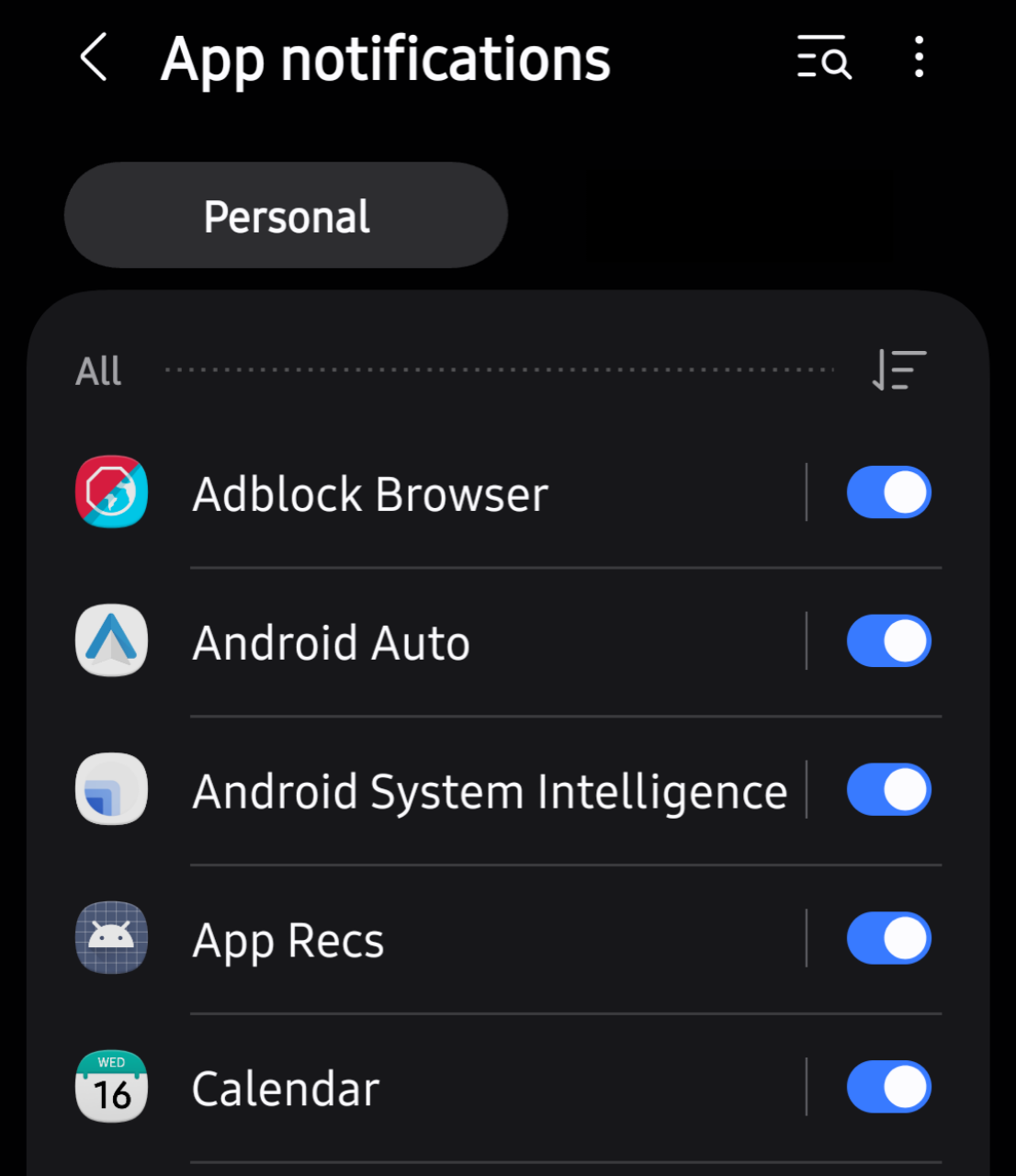
- Open your phone settings and tap on the App Notifications option.
- Tap on See All.
- Now, you can view your full application list.. Simply turn on the notifications for the apps you want to receive alerts from.
How to Enable Push Notifications on Android Chrome
If you want to receive notifications from websites like Facebook or news portals directly through Google Chrome, there are two ways to turn them on.
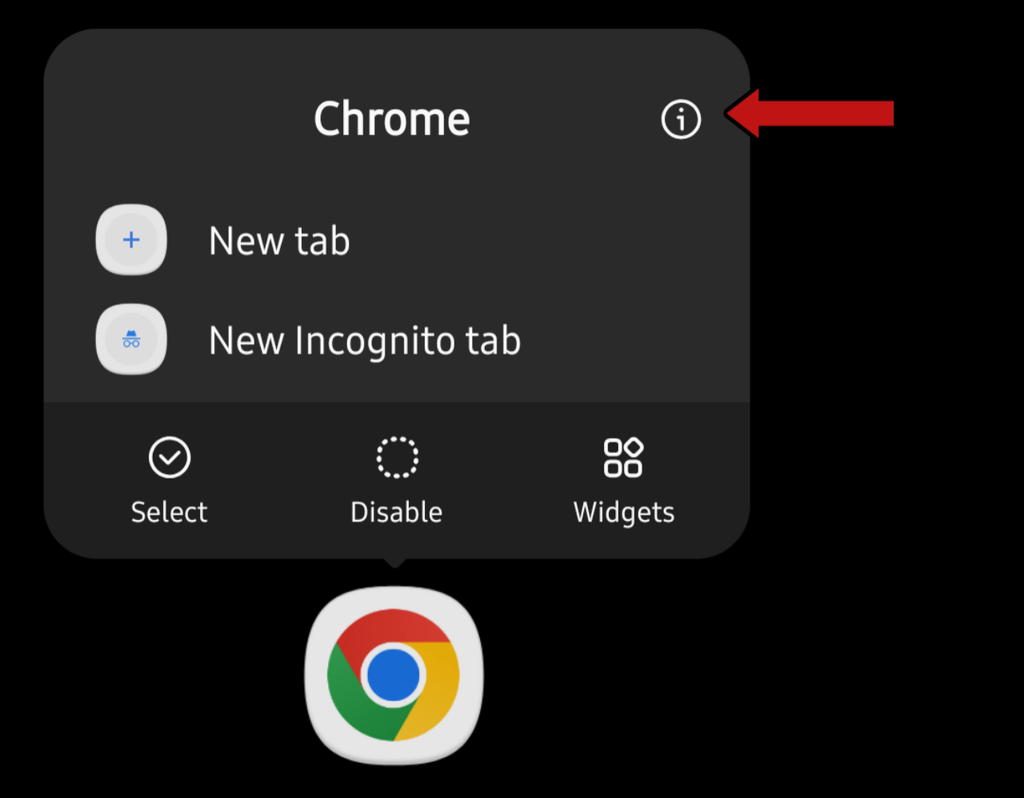
First Method: Enable Push Notifications via App Info
- Press and hold the Google Chrome app icon.
- Tap the small info icon on the right side.
- Allow notifications from there.
Additionally Second Method: Chrome Notification Settings
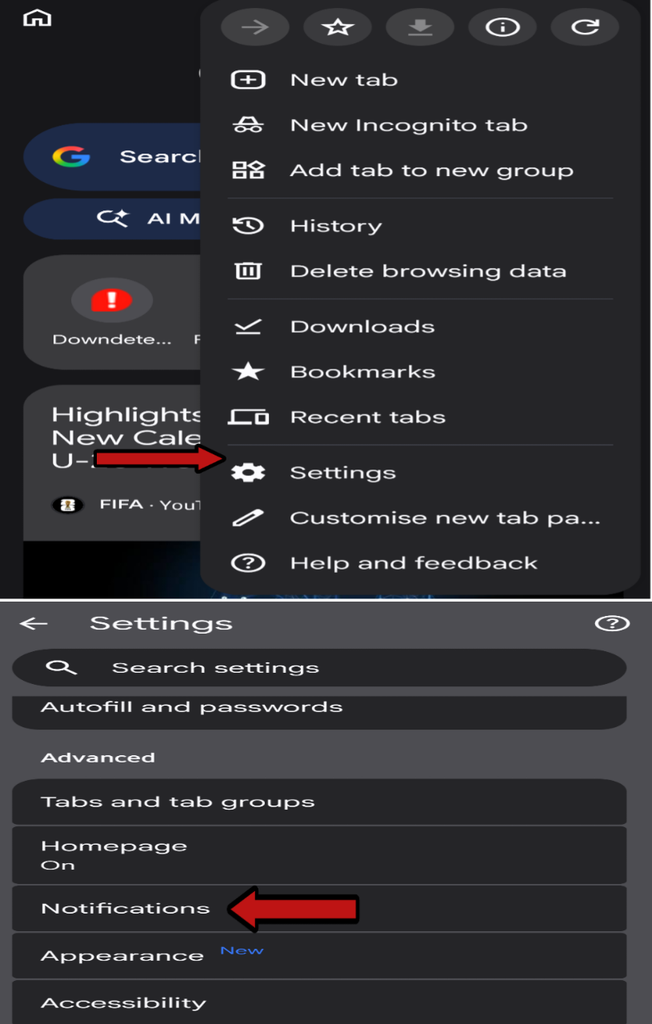
- Open the Google Chrome browser on your Android phone.
- Tap the three dots in the top right corner and select Settings.
- Scroll down and tap on Site Settings.
- After that, Tap on Notifications.
- Toggle the switch at the top to turn notifications on. If a website is on the blocked list, remove it and set it to Allow.
How to Enable Push Notifications on Android by Turning Off DND
Sometimes, you might not receive alerts even when all your app notification settings are turned on.
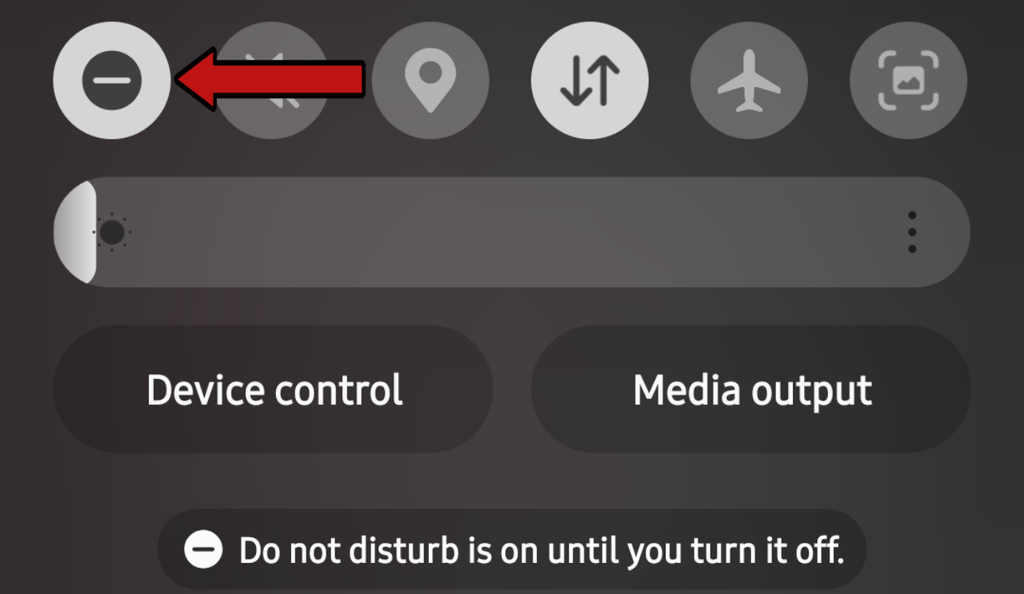
This often happens because, Do Not Disturb mode is active on your phone. To turn this mode off, follow these steps:
- First, Swipe down from the top of your screen to open the notification panel.
- Next, Turn off Do Not Disturb.
Managing App Categories and Lock Screen Settings
Android phones offer a feature that lets you control individual app notifications and choose whether to display them on your lock screen.
Push Notification Categories:
On the app’s notification page, you will find various categories (such as Message Alerts and Sound Alerts). However, Make sure the switches next to these categories are turned on.
Lock Screen Notifications:
Do you want to see notifications from your apps even when your phone is lock. Doing this is very easy. Go to your phone settings, navigate to Notifications > Lock Screen, and enable the option.
Hopefully, your issue how to enable push notifications on Android is now resolved. If you run into any other issues, feel free to contact us, and we will help you find a solution.