
If you are staring at your screen wondering, “Why Are My WhatsApp Messages Not Delivering” you have come to the right place. In this guide, you will find a simple and complete solution to fix this issue.
Understanding WhatsApp Icons: Clock vs. Single Tick
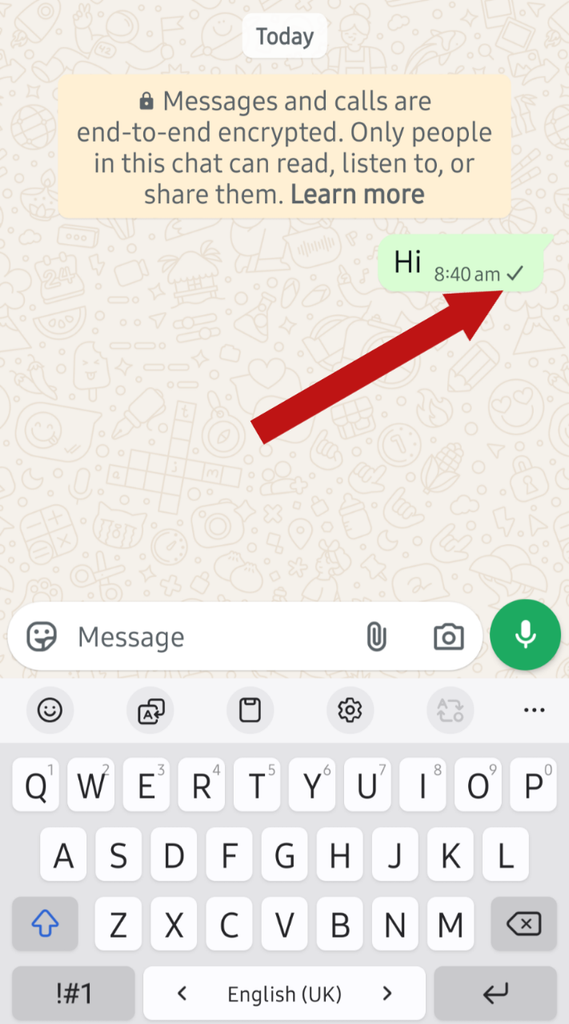
Most people don’t know the real difference between the clock icon and a single tick on WhatsApp:
- Clock Icon: Your internet is slow or disconnected, so the message hasn’t left your phone yet.
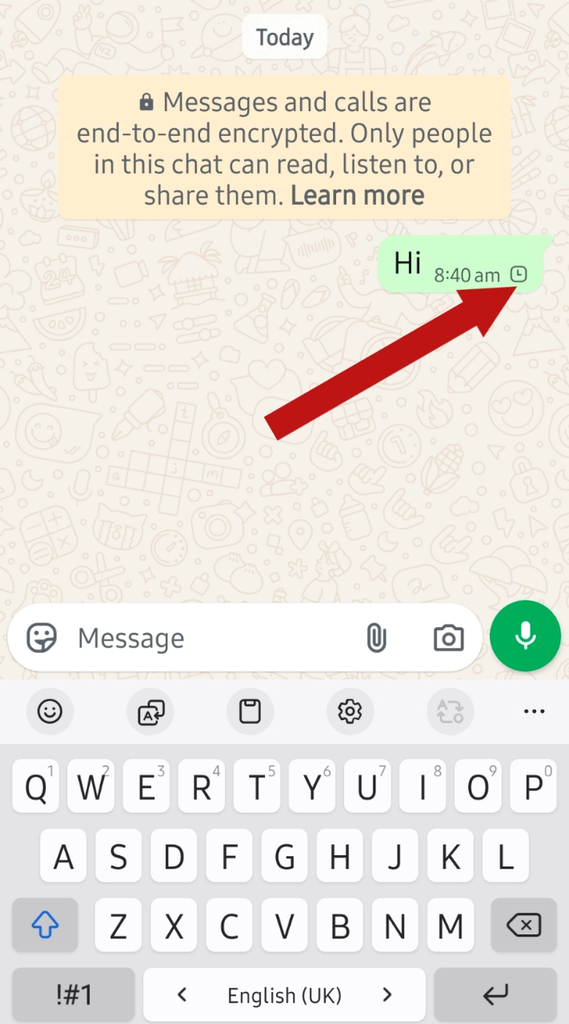
- Single Tick: Your message has reached WhatsApp’s servers, but it hasn’t been delivered to the recipient’s phone yet.
1. Check Your Internet Connection
A weak, slow, or dead internet connection is the most common culprit. If you are using Wi-Fi or mobile data, try turning it off and back on after a few seconds.
2. See If the Recipient Has Blocked You
If this issue only happens when messaging one specific contact, they might have blocked you. A quick way to check is to see if you can still view their “Last Seen” status or profile picture.
3. Clear WhatsApp Cache (Android & iPhone)
Sometimes temporary junk files prevent messages from sending. Clearing your cache can quickly solve this.
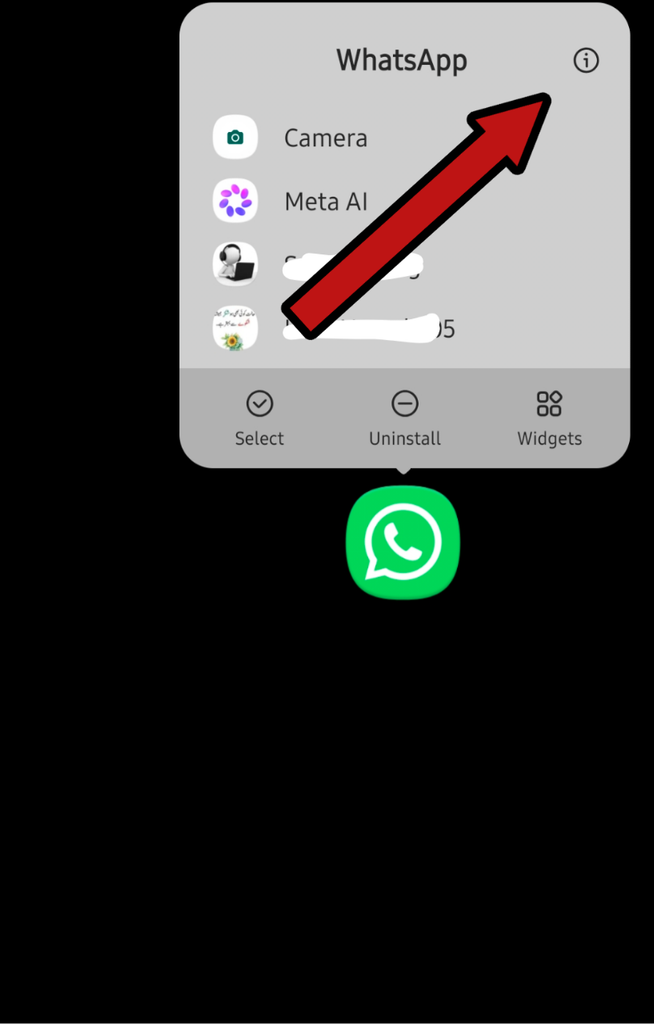
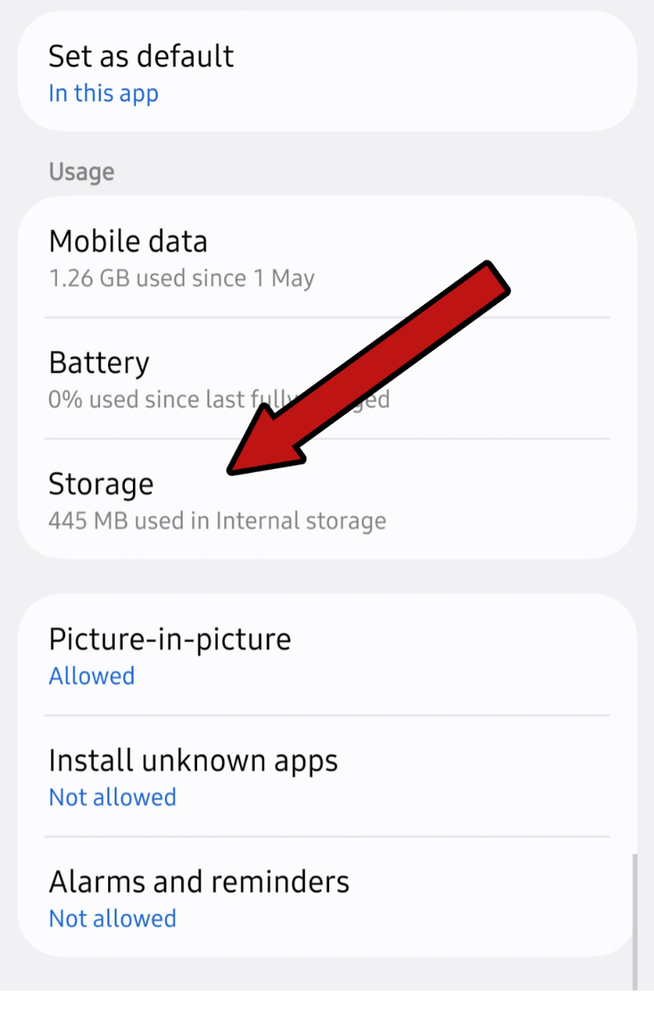
- Android: Go to Settings > Apps > WhatsApp > Storage > Clear Cache.
(Or simply tap and hold the WhatsApp icon, tap “App Info,” and clear the storage/cache from there).
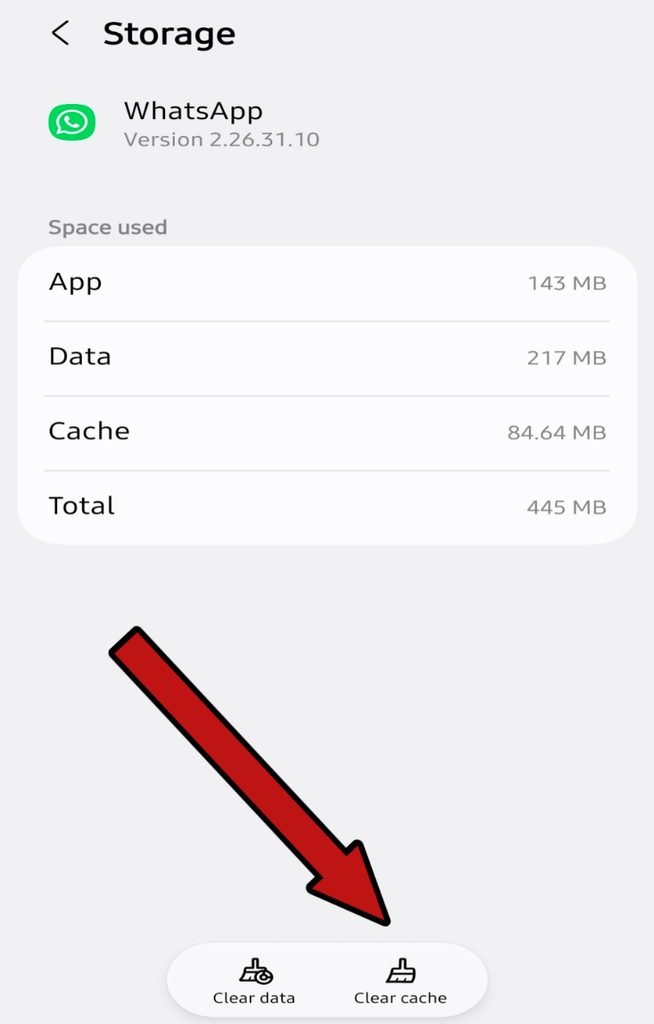
- iPhone: You can either offload the app in your storage settings or simply restart WhatsApp.
4. Turn Off Battery Saver / Low Power Mode
If your phone is on Battery Saver mode, it might restrict WhatsApp from working properly in the background. Try toggling it off.
5. Enable Background Data Usage
If background data access is switched off, WhatsApp will struggle to send or receive messages unless the app is actively open on your screen.
- Go to Settings > WhatsApp > Data Usage > Turn on Allow Background Data.
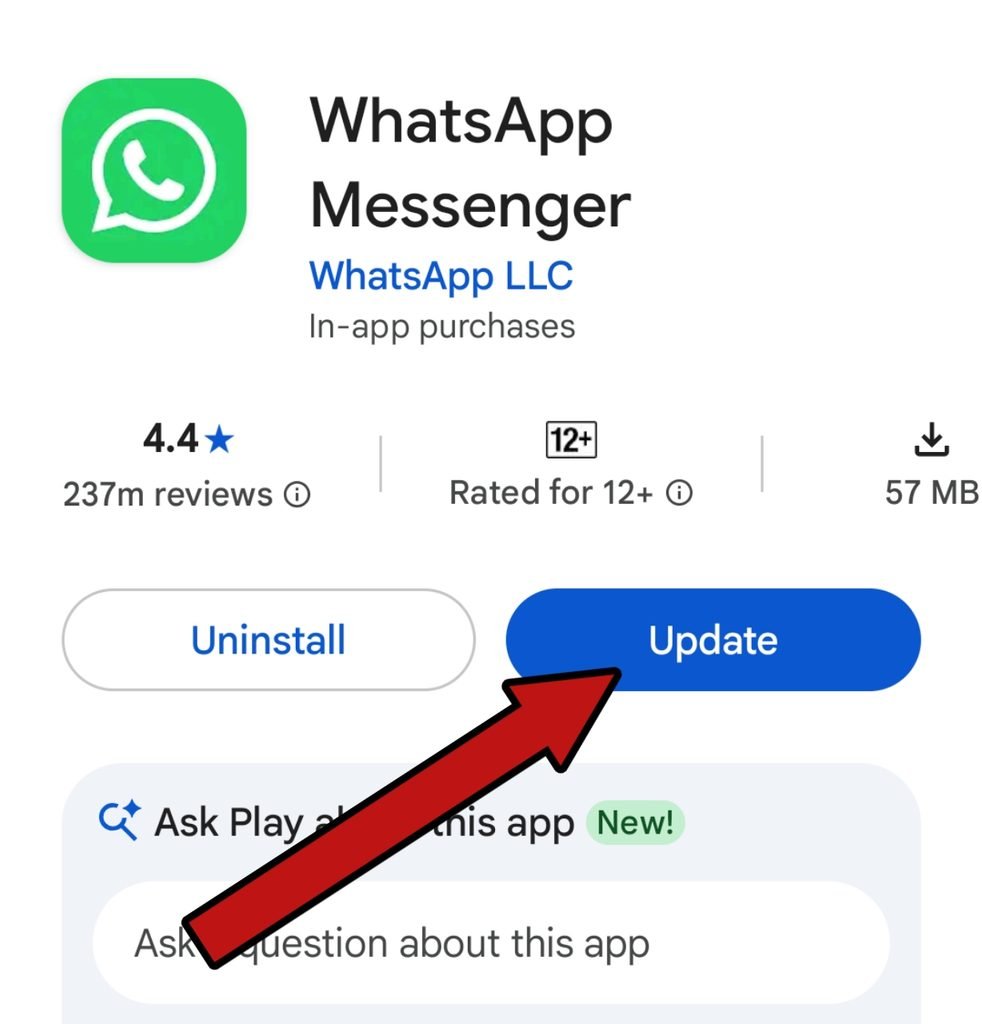
6. Update WhatsApp to the Latest Version
Using an outdated version of the app can cause glitches.
Go to the Google Play Store (Android) or the App Store (iPhone) and update WhatsApp to the latest version.
7. Check If WhatsApp Server Down
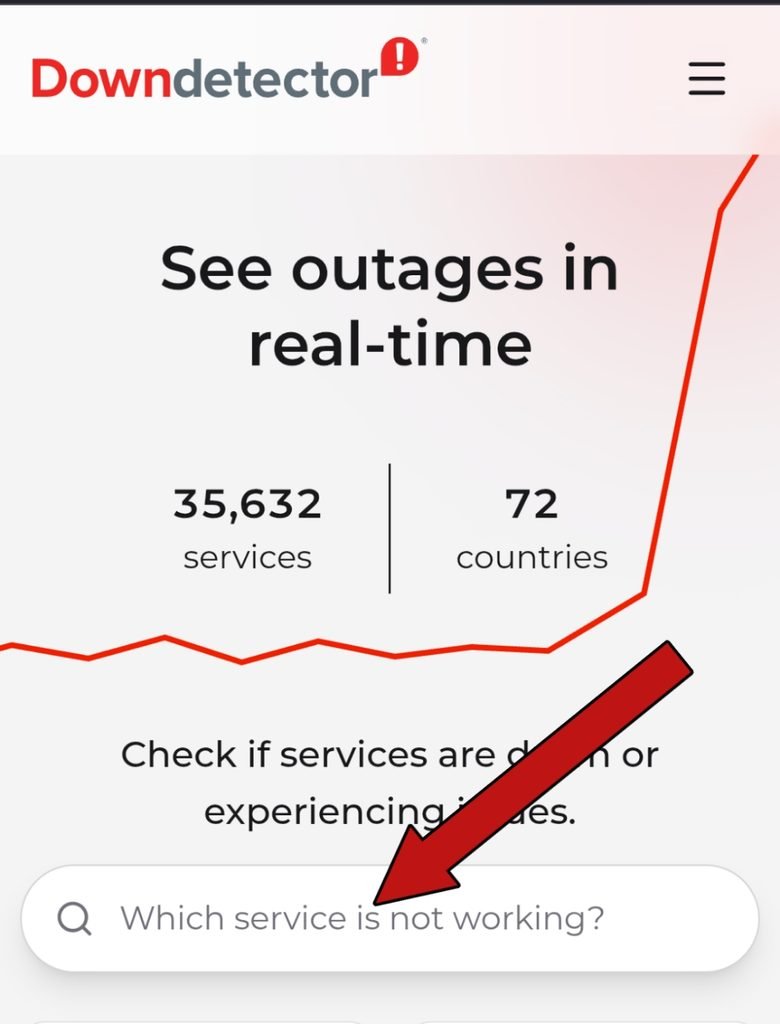
If none of your messages are going through to anyone, the issue might be on WhatsApp’s Servers errors.
You can check websites like Down Detector to see if WhatsApp is currently facing a server outage
Server outages happen occasionally, so give it a little time and try again later.
8. Check Storage Space on Your Device
Lastly, your phone’s storage might be completely full. When you run out of space, WhatsApp struggles to process incoming messages or send multimedia files like photos and videos.
Try clearing out some old files or unused apps to free up a bit of space, and your messages should start going through smoothly again.
So today you learned this and I hope your problem why are my WhatsApp messages not delivering has been solved.